
Last checked . Picks are based on the prices, rates, fees and terms each provider publishes, checked at the source. We never rank products by commission. See how we’re funded.
Galaxy phones can now back up photos to Google from inside Gallery. Microsoft says the old OneDrive link ended on September 30, 2026. This guide covers Samsung Gallery sync setup, requirements, deletions and the off switch.
- What changed with OneDrive
- Seven setup steps
- Requirements, where sources differ
- Deletions, edits and the off switch
Sources: Samsung and Microsoft support pages, plus Android Central. Status as of November 18, 2026. Menu names vary by phone.
What changed for Samsung Gallery sync
| Date | Event | Source |
|---|---|---|
| Sept. 18, 2026 | Google Photos sync reported in Gallery 15.9.01.7 | Android Central |
| Sept. 30, 2026 | Gallery-to-OneDrive sync ends; no new links | Microsoft |
Old OneDrive photos are not lost. Per Microsoft:
- They are not deleted or changed.
- They stay at onedrive.com and in the OneDrive app.
- They no longer appear inside Gallery.
How to turn on Samsung Gallery sync
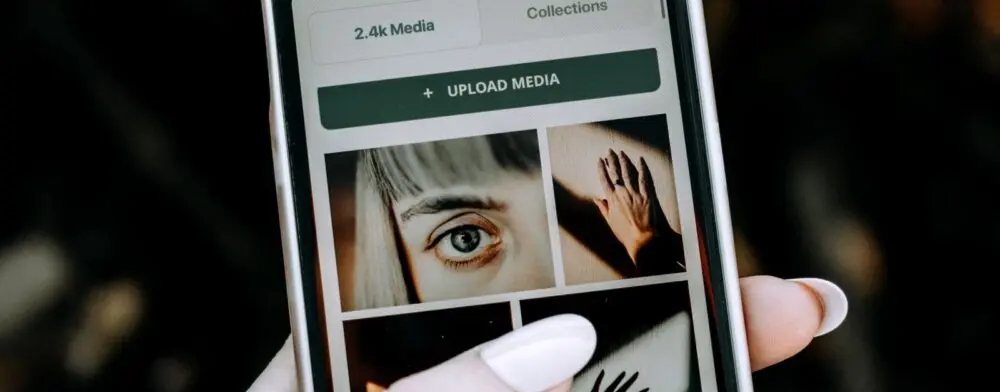
Samsung’s support page calls the setting “Sync photos and videos.”
- Open the Gallery app.
- Tap the Menu icon at the bottom right.
- Select Settings.
- Choose Sync photos and videos.
- Pick the Google account, turn the toggle on and tap Continue.
- Tap Sync now.
- Optional: tap Albums to sync and pick the albums.
Android Central gives the same path. The phone also asks for permission to sync with Google.
Samsung Gallery sync requirements
| Requirement | Samsung’s page | Android Central |
|---|---|---|
| Software | One UI 9.0 or later | Android 13 or later, Gallery 15.9.01.7 |
| Account | Personal Google account. No parent-supervised or Workspace accounts. | Personal Google account |
| Storage | Counts against Google storage; original quality | Not covered |
| SD card | Not supported directly; move files to internal storage | Not covered |
The software bars differ. A phone on Android 13 could pass one and fail the other. Neither source lists models, so the test is simple: no “Sync photos and videos” entry in Settings means the phone is not ready. Check free space in the Google account too, since backups count against it.
What Samsung Gallery sync copies and deletes
| Behavior | What Samsung says |
|---|---|
| Content | Photos, videos and chosen albums, such as Downloads and Screenshots |
| Camera roll | Can be left out while other folders sync |
| Duplicates | Items already uploaded by Google Photos backup are not copied twice |
| Edits | Backed up; original and edited versions may both show |
| Deletions | Delete in either app and the item disappears from both and the cloud |
Two-way deletion is the row to remember. Shared accounts raise the stakes:
- Synced items appear on every signed-in device.
- A delete on one phone could remove the photo on all of them.
- Separate accounts, or a test with a few photos, avoid the surprise.
Android Central adds two cautions. Gallery is not a full Google Photos browser, and with cloud sync on, Gallery may act as a read-only cloud gallery. That seems to clash with the album options, so test it.
How to turn Samsung Gallery sync off
Go to Gallery, Menu, Settings, then switch off Sync photos and videos. Samsung says this stops new backups and removes cloud media access in Samsung apps. It does not cut the link to Google storage. Android Central says photos already backed up stay in Google Photos.
Keeping OneDrive instead
Microsoft’s steps for people who prefer its service:
- Open the OneDrive app and sign in.
- Tap the account profile at the top left.
- Select Camera backup and turn it on.
Microsoft says this needs full photo and video access, and uploads stop when the quota is full. Running both services keeps two copies of every new photo. The site’s guide to freeing up iPhone storage covers the same trade-off on Apple phones.
A five-minute Samsung Gallery sync check
The Jolt Journal’s suggestion, built from the paths above:
- Minute one: check free space in the Google account.
- Minute two: open Sync photos and videos and pick the account.
- Minute three: use Albums to sync to skip folders such as Screenshots.
- Minute four: tap Sync now and look for uploads in Google Photos.
- Minute five: delete one test photo and confirm it vanishes in both places.
The site’s report on app photo access covers who else can see a photo library.
Samsung Gallery sync questions
- Cost? Samsung says backups count against Google storage. Its page gives no free allowance.
- New phone needed? Samsung names One UI 9.0 or later. Android Central names Android 13 or later.
- Work account? No. Samsung excludes Workspace and parent-supervised accounts.
- OneDrive and Google together? Microsoft does not rule it out. Each new photo would exist twice.
- Wi-Fi required? Neither source says, so mobile data use is unknown.
If Samsung Gallery sync is missing
The Jolt Journal’s checklist, based on the requirements above:
- Software: open Settings, then Software update, and install any pending update. Samsung’s page names One UI 9.0 or later.
- Gallery version: Android Central cites version 15.9.01.7 for the Google Photos option. Gallery’s About page shows the installed version.
- Account type: Workspace and parent-supervised accounts are excluded, per Samsung. Try a personal Google account.
- Region: the Samsung page read is the India support site. Other countries may see a different rollout.
- Storage: a full Google account may block uploads even when the setting appears.
Still missing after those checks? Samsung’s support channels are the next stop, since neither source explains regional or model gaps.
What is not known
- Whether the bar is One UI 9.0 or Android 13. The sources differ.
- How much Google storage a large library will use. Samsung gives no figure.
- Whether every Galaxy model and country gets Samsung Gallery sync. The Samsung page read is the India site.
- Whether the read-only cloud gallery applies when album sync is on.
Editor’s take
Editor’s take: Samsung Gallery sync fills the gap OneDrive left. The convenience is real, and so is two-way deletion, which makes the first week the time to test with a few photos. Read the storage line too, since backups count against the Google account. Anyone who wants a separate copy should keep one.
This article is for general information on Samsung Gallery sync, based on Samsung, Microsoft and Android Central as of November 18, 2026. Features, menus and access may change.