

Last checked . Picks are based on the prices, rates, fees and terms each provider publishes, checked at the source. We never rank products by commission. See how we’re funded.
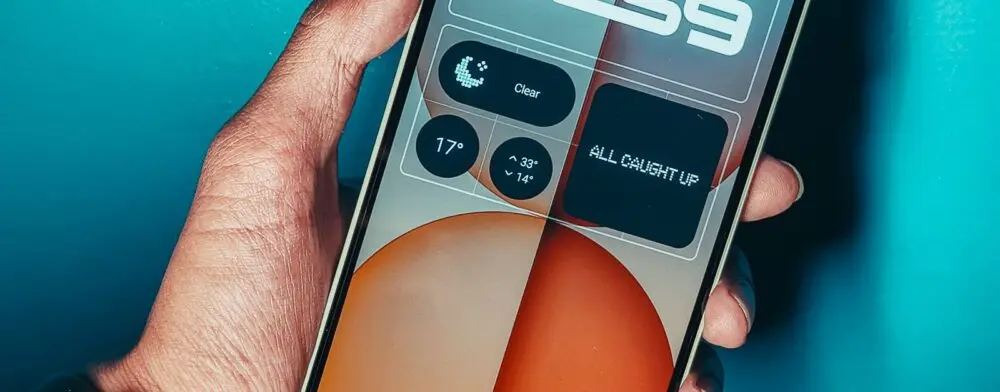
Create My Widget lets a Pixel 10 or newer build a home screen widget from a typed description, such as a trip countdown or a team’s game schedule, according to Google’s Pixel Phone Help page. It arrived with the November 2026 Pixel Drop, which began rolling out on November 12. This guide covers the requirements, the steps, how to edit a widget, and what Google has not said.
- Which phones, regions, and accounts qualify
- How to make a widget from a prompt or a template
- How to edit one and join the Play Store beta
- What is not known
Facts come from Google and two press reports, as of November 18, 2026. Rollouts are gradual, so the option may not show up on every eligible phone.
Create My Widget requirements
| Item | What Google’s help page says |
|---|---|
| Phone | Pixel 10 and newer, except the Pixel 10a |
| Age | 18 or older |
| Language | English only |
| Regions | Australia, Canada, India, the United States, and the United Kingdom |
| Personal data | Connect Google Workspace during setup; not available through Connected Apps in the UK |
| Cost | Some features may require a subscription for higher usage |
Google’s Pixel Drop post lists the eligible phones: Pixel 10, 10 Pro, 10 Pro XL, and 10 Pro Fold, plus the Pixel 11, 11 Pro, 11 Pro XL, and 11 Pro Fold. That post says only “select markets,” so the five countries come from the help page.
How to make a widget with an open prompt
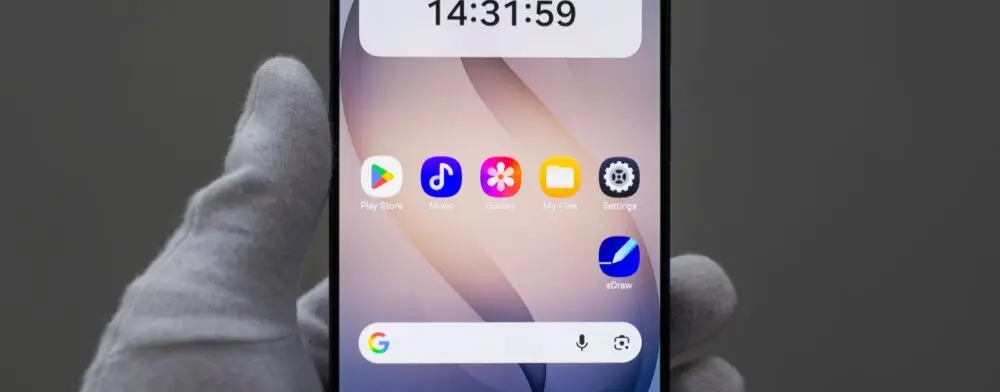
- Touch and hold an empty space on the Home screen.
- Tap Widgets, then Create.
- Tap Describe your widget.
- Type what the widget should show, and tap Send.
- Review the preview, and tap Add.
If a widget needs data from the device or an app, tap Allow when asked. Google’s page advises checking the widget’s responses for accuracy.
How to make a widget from a template
- Touch and hold an empty space on the Home screen.
- Tap Widgets, then Create.
- Pick a category or suggestion, such as Important dates, Sports & fitness, or Finance.
- Change the prompt or template details if wanted.
- Tap Add.
Examples in the coverage: Android Authority mentions a wedding anniversary countdown and a widget tracking a favorite football team’s games. Google’s Pixel Drop post names a monthly spending tracker, a game day widget in team colors, and a trip countdown that pulls in flight and reservation details.
How to edit a Create My Widget widget
| When | Steps |
|---|---|
| During creation | On the preview screen tap Edit, enter the changes, tap Send, then tap Add |
| After it is on the Home screen | Touch and hold the widget, tap Edit, enter updates on the Edit your widget screen, and tap Send |
Beebom describes the preview as a carousel of widgets with icons and formatted data. From there, a user can pin one, adjust its layout, or discard it and generate a new design.
How to join the Create My Widget beta
Android Authority says the feature can be reached before the November update lands, through the Play Store.
- Open the Create My Widget listing in the Google Play Store.
- Scroll to Join the beta and tap Join.
- Wait a few minutes for enrollment.
- Tap Update to install the beta version.
That route follows the same limits on device, age, language, and region, per Android Authority.
A five-minute Create My Widget test
These steps are The Jolt Journal’s suggestion.
- Minute one: long-press the Home screen, tap Widgets, and look for Create. If it is missing, the phone or region may not be eligible.
- Minute two: try a low-stakes prompt, such as a countdown to a holiday.
- Minute three: compare the widget’s date or numbers with a trusted source.
- Minute four: use Edit to change one detail.
- Minute five: review which apps the widget was allowed to read.
The site’s guide to app photo access covers how to review other permissions, and its report on Google AI Plus shows how Google’s plan tiers can change what a phone offers.
Other features in the November Pixel Drop
| Feature | What Google says |
|---|---|
| Custom icon styles | New styles for all home screen app icons; works on Pixel 6a and newer |
| Pixel search | Finds photos, emails, messages, calendar events, and settings; Pixel 6a and newer |
| Rambler | Voice typing that removes filler words |
| HiLight with Google Messages | Glows when a favorite contact messages a face-down phone; Pixel 11 Pro models |
Create My Widget questions
- Does it work on a Pixel 9? Not according to the help page, which starts at the Pixel 10.
- Does it work on a Pixel 10a? No. Google excludes it.
- Is it free? Google says some features may need a subscription for higher use. It does not give a price or limit.
- Can it reach a Pixel Watch? Google says Pixel Watch 4 and Pixel Watch 5 support is coming soon, with no date.
- Can widgets use personal data? Yes, if Google Workspace is connected, per the help page.
- Is the answer always right? Not necessarily. Google’s page says to check custom widget responses, and its Pixel Drop post notes that results may vary.
- Does it need a Wi-Fi connection? The pages read do not say.
What is not known
- Which Android version the feature needs. The pages read do not say.
- How many widgets a phone can hold, and what data sources a widget can use.
- How to delete or resize a Create My Widget widget. Google’s page does not cover it.
- What the subscription limit is, and what it costs.
- When the feature reaches more regions and languages.
Editor’s take
Editor’s take: Create My Widget is useful for small, personal widgets such as countdowns, where a mistake costs little. Google itself says to check the answers, so a widget that shows money or schedules deserves a second look. The tool is limited by phone, age, language, and country, and the rules may widen as the Pixel Drop continues.
This article is for general information on Create My Widget, based on Google, Android Authority, and Beebom as of November 18, 2026. Features, menus, and availability may change.