
We may earn a commission when you buy through links on this page. It doesn't change what we recommend.
Last checked . Picks are based on the prices, rates, fees and terms each provider publishes, checked at the source. We never rank products by commission. See how we’re funded.
If you want to set up passkeys, the process is a few taps per account and the payoff is real: no password to remember, nothing to type and nothing a fake website can steal. Passkeys are now supported by Google, Apple and Microsoft, and a growing list of apps. This guide explains what a passkey is, how to set up passkeys on iPhone, Android, Mac and Windows, what happens if you lose your phone, and the mistakes to avoid.
What is a passkey?
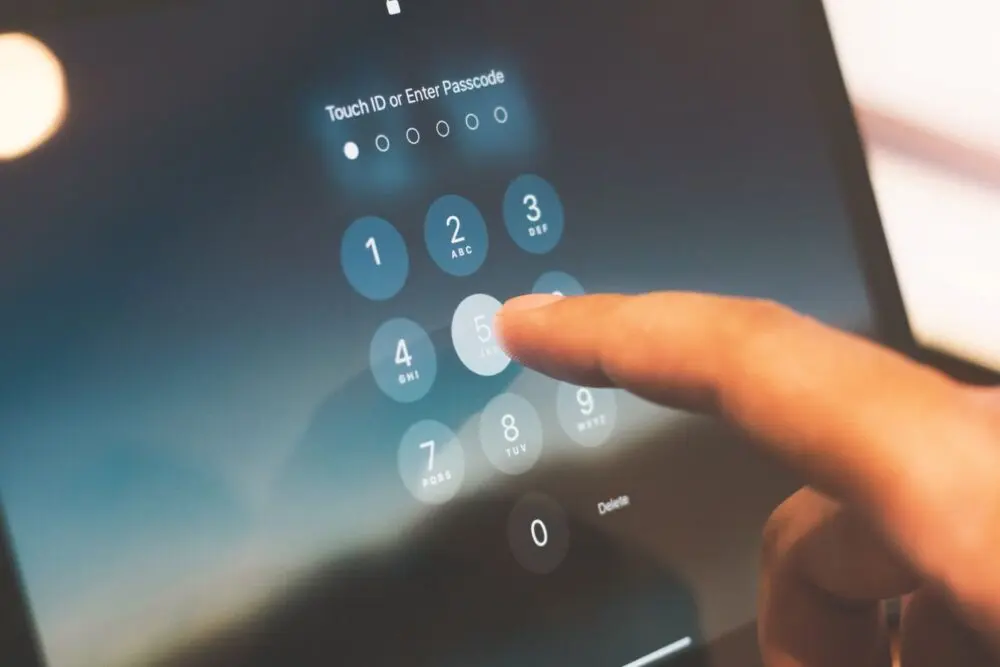
The FIDO Alliance, the industry group behind the standard, describes a passkey as a replacement for a password. It’s a credential stored on your device or a security key, and you unlock it with the same fingerprint, face scan, PIN or pattern you use to unlock the device.
Behind the scenes, a passkey is a cryptographic key pair. The website keeps a public key, and the private key stays with you, so there’s no secret on the company’s servers for a breach to leak. Each passkey is tied to a specific site or app, so a fake look-alike site can’t use it. That’s what “phishing-resistant” means in practice.
How passkeys differ from two-factor codes
Two-factor codes sent by text message or generated by an app still require you to type something, and criminals can trick you into typing it on a fake page. The Cybersecurity and Infrastructure Security Agency (CISA) ranks phishing-resistant methods, including FIDO and WebAuthn, as the strongest form of multifactor authentication, ahead of app-based codes and, last, text or voice codes. CISA’s fact sheet dates from October 2022, but the ranking still reflects the agency’s guidance.
Microsoft says passkeys count as multifactor on their own because they combine something you have, your device, with something you are or know, your biometric or PIN. Google says signing in with a passkey skips the separate second step, and adding one doesn’t change your other sign-in or recovery methods.
Before you set up passkeys: two quick checks
Make sure the device you’re using is yours and secured with a screen lock. Google warns not to create passkeys on shared devices. Then check your software. Google’s Account help lists Android 9 or iOS 16 and later, along with recent versions of Chrome, Safari, Edge and Firefox. Choosing a third-party passkey provider on Android needs Android 14 or later.
How to set up passkeys on a Google account
Go to myaccount.google.com/signinoptions/passkeys on a device you trust and follow the prompts, unlocking the device when asked. Next time you sign in, Google can offer the passkey instead of a password. If you use Chrome, the flow is similar for other sites: sign in, accept the prompt or find the passkey option in the account settings, choose Create a passkey, and confirm with your screen lock.
How to set up passkeys on an iPhone or Mac
On Apple devices, passkeys live in iCloud Keychain, which requires two-factor authentication on your Apple Account. To turn it on for an iPhone, open Settings, tap your name, then iCloud, then Saved to iCloud, and choose Passwords, then turn on sync. On iOS 17 or earlier, the menu is called Passwords and Keychain. On a Mac, use System Settings, your name, iCloud, then Passwords. Menu names change between OS versions, so use the search box if yours differ.

On a Mac with iCloud Keychain set up, accept the offer to save a passkey when you create an account or sign in, then approve with Touch ID. To replace a password on an existing account, look for a passkey option in that site’s account settings. On iOS 18 and later, Apple’s Passwords app shows and manages your passkeys, including shared groups.
We couldn’t confirm the exact iPhone prompt wording from Apple’s current pages, so if what you see differs from this description, trust the on-screen prompts.
How to set up passkeys on Windows
For a Microsoft account, sign in at account.live.com/proofs/manage, choose Add a new way to sign in or verify, then pick Face, Fingerprint, PIN or Security Key and follow the prompts, according to Microsoft’s support page. You can save the passkey to Microsoft Password Manager or another synced manager, to a phone or tablet through a QR code, to a security key or in Windows Hello on the device. To see saved passkeys, open Settings, then Accounts, then Passkeys.
Microsoft warns that if you remove a passkey, you can no longer sign in with it, so add another sign-in method first.
Using a password manager to set up passkeys
Password managers such as 1Password and Bitwarden can store passkeys and sync them across devices and browsers. 1Password offers to save a passkey when a site prompts you, and Bitwarden supports browser extensions, iOS 17 and later and Android 14 and later. One catch from 1Password’s help pages: deleting a passkey from the manager doesn’t remove it from the website, so remove it in the site’s settings too.
What happens if you lose your phone?
However you set up passkeys, plan for a lost device. For synced passkeys, you set up a new device with the same provider and the passkeys come back, according to FIDO. Apple says losing one device doesn’t remove access because of iCloud Keychain sync. If you’ve lost every Apple device, recovery relies on your account password, a text code and a device passcode, and you get only 10 attempts before the recovery record is destroyed.
For Google, sign in on a device you still have and remove the passkey for the lost phone. Microsoft notes that a device-bound passkey is lost with the device unless you set up another way in, and suggests creating passkeys on more than one device as a backup. A FIDO security key can serve as a recovery option too.
Which sites support passkeys?
We couldn’t find an official, complete list. FIDO’s October 2025 Passkey Index drew on data from nine providers: Amazon, Google, LY Corporation, Mercari, Microsoft, NTT DOCOMO, PayPal, Target and TikTok. Google, Apple and Microsoft all support passkeys for their own accounts. For anything else, check the service’s account security settings for a passkey option.
Common mistakes when you set up passkeys
Creating a passkey on a shared or public computer. Deleting your password or other sign-in options before the passkey works. Turning on passkeys with only one device and no backup. Forgetting to remove a passkey from a website after deleting it from a password manager. And skipping two-factor on your Apple Account, which is required for iCloud Keychain.

Passkeys also don’t replace everything yet. Keep your recovery email and phone number current, and use a password manager for accounts that don’t offer passkeys. For another common attack that two-factor codes can’t stop, see our report on how a fake invitation can beat a two-factor login.
Editor’s take
When you set up passkeys, start with the accounts that would hurt most if someone took them: your email, your main phone account and your bank. Add a passkey, keep a second sign-in method for now, and test it from another device. Once it works, you’ll notice how much faster it is than typing a password.