

Last checked . Picks are based on the prices, rates, fees and terms each provider publishes, checked at the source. We never rank products by commission. See how we’re funded.
Gemini CarPlay is now rolling out to iPhone users. In a blog post published November 11, Google said the Gemini app is coming to Apple CarPlay “globally starting today” for all Gemini users on iOS. It follows an earlier launch on Android Auto and in cars with Google built in.
This guide covers Gemini CarPlay setup step by step, what Gemini Live can do on the road, and who is left out. It relies on Google’s post for the setup and features. Where it mentions Siri and other chatbots in CarPlay, it relies on earlier reports from MacRumors and Engadget. The Jolt Journal has not tested the feature in a car.
What Google says Gemini CarPlay offers
Google describes Gemini CarPlay as a voice-first version of Gemini Live. The post lists these abilities:
- Back-and-forth talk. You can interrupt, change topics or pause when you need to focus on an exit.
- Day prep. Ask about your schedule, when to leave for an appointment or how to open a meeting.
- Inbox catch-up. Get a daily brief, hear unread email, summarize long threads and dictate a quick reply.
- Local ideas. Ask for a quick lunch stop or facts about a landmark on your route.
- Practice and learning. Rehearse a presentation, prepare for a hard conversation or get a plain explanation of a complex topic.
- Chat sync. Conversations started in the car sync to the Gemini app on your iPhone, so the history is there once you park.
In short, Gemini CarPlay is built around conversation and your Google account data, not around driving controls.
What you need before Gemini CarPlay setup
| Requirement | Detail from Google’s post |
|---|---|
| App | The latest version of the Gemini app on your iPhone |
| Permission | Microphone access turned on for Gemini |
| Prior use | Gemini Live used on the phone at least once |
| Connection | iPhone connected to your car’s CarPlay system |
| Inbox features | Gemini connected to Gmail and Google Calendar |
| Daily Brief | Must be enabled before it works |
Google’s post does not name a minimum iOS version, a CarPlay version or supported car models. Check the App Store listing for Gemini if your phone is on an older iOS release.
How to set up Gemini CarPlay on your iPhone

These are the steps in Google’s post, in order:
- Update the Gemini app. Open the App Store on your iPhone and install the latest version.
- Allow the microphone. Turn on microphone permission for Gemini when the app asks, or in iPhone settings.
- Try Gemini Live once on the phone. Start a Live conversation before you get in the car.
- Connect to your car. Plug in or pair your iPhone as you normally do for CarPlay.
- Tap the Gemini icon. Look for it on the CarPlay display or the side rail.
- Pick a chat. Resume a recent conversation or start a new one.
Anyone who plans to use the Daily Brief should turn it on in the Gemini app first. The Jolt Journal’s guide to Gmail’s AI Inbox and Gmail Live covers related Google inbox features and who gets them.
Gemini CarPlay prompts from Google’s post
| Task | Example prompt in Google’s post | Needs |
|---|---|---|
| Day prep | “What does my day look like?” | Google Calendar connected |
| Inbox | “Give me my daily brief for today.” | Gmail, Daily Brief enabled |
| Local stop | “What’s a quick lunch spot in downtown Austin that’s easy to get in and out of?” | Internet connection |
| Rehearsal | A roleplay where Gemini acts as a skeptical VP | None listed |
| Learning | How solid-state EV batteries work | None listed |
Who cannot use all of Gemini CarPlay
The rollout is global, but some features are not. Google says certain personalization features, including the Daily Brief, are not available to users under 18 or to users in the European Economic Area or Nigeria. The post says the feature covers every supported Gemini Live language and does not list them. Google also does not say whether Gemini CarPlay costs anything beyond a Gemini account. Readers deciding between plans can see the site’s piece on how Google AI Plus changes on November 13.
Gemini CarPlay versus Siri and other chatbots
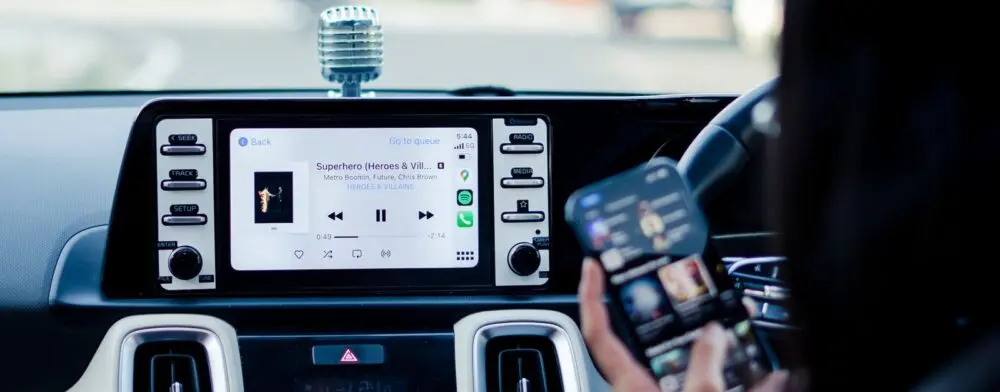
Apple opened CarPlay to third-party chatbot apps this year. MacRumors reported in February that such apps cannot control vehicle or iPhone functions, cannot be started with a wake word and do not replace Siri. Engadget’s September list says the chatbot feature relies on an API from iOS 26.4 and that Siri AI needs iOS 27 and an iPhone 15 Pro or later.
| Question | Gemini in CarPlay | Siri, per the reports |
|---|---|---|
| How you start it | Tap the Gemini icon | “Hey Siri,” where the car supports it (Siri AI, per Engadget) |
| Navigation | Not described in Google’s post | Siri AI can guide you through Apple Maps, per Engadget |
| Car or phone control | Not described in Google’s post | Chatbots cannot, per MacRumors |
| Email and calendar | Gmail and Google Calendar, with Workspace connected | Not covered in these reports |
| Chat history | Syncs to the Gemini app | Not covered in these reports |
Those two outlets wrote before Gemini arrived, so neither compares the two directly. Treat the table as a summary of reported limits, not a test.
If the Gemini CarPlay icon is missing
These checks are The Jolt Journal’s suggestions, not Google guidance. Google says the rollout is global but gradual, so the icon may take time to appear:
- Confirm the Gemini app is fully updated.
- Check that microphone access is on for Gemini in iPhone settings.
- Open Gemini Live on the phone once, then reconnect to the car.
- Look for the icon on the CarPlay home screen and on the side rail.
- Check that your age and region are not among the excluded groups for the Daily Brief.
Using Gemini CarPlay while driving
The following points are The Jolt Journal’s suggestions. Set up the app and the Daily Brief while parked. Use short, spoken requests, and pause the chat when traffic needs attention, which Google says is allowed. Verify anything important, such as a meeting time, before relying on it, because AI answers can be wrong. Rules on device use while driving differ by state, so check local law.
Editor’s take
Editor’s take: Gemini CarPlay is a convenience feature tied closely to a Google account. Its value depends on how much of your day lives in Gmail and Google Calendar. Google’s post leaves open car and iOS compatibility, cost and any driving controls, so early users should expect gaps. For now the safest approach is to try it parked, keep requests short and treat Siri as the tool for navigation.
This article is for general information, based on Google’s November 11, 2026 post and earlier press reports as of November 12, 2026. Features, regions and requirements may change. Never use a phone in a way that distracts you while driving.