

Last checked . Picks are based on the prices, rates, fees and terms each provider publishes, checked at the source. We never rank products by commission. See how we’re funded.
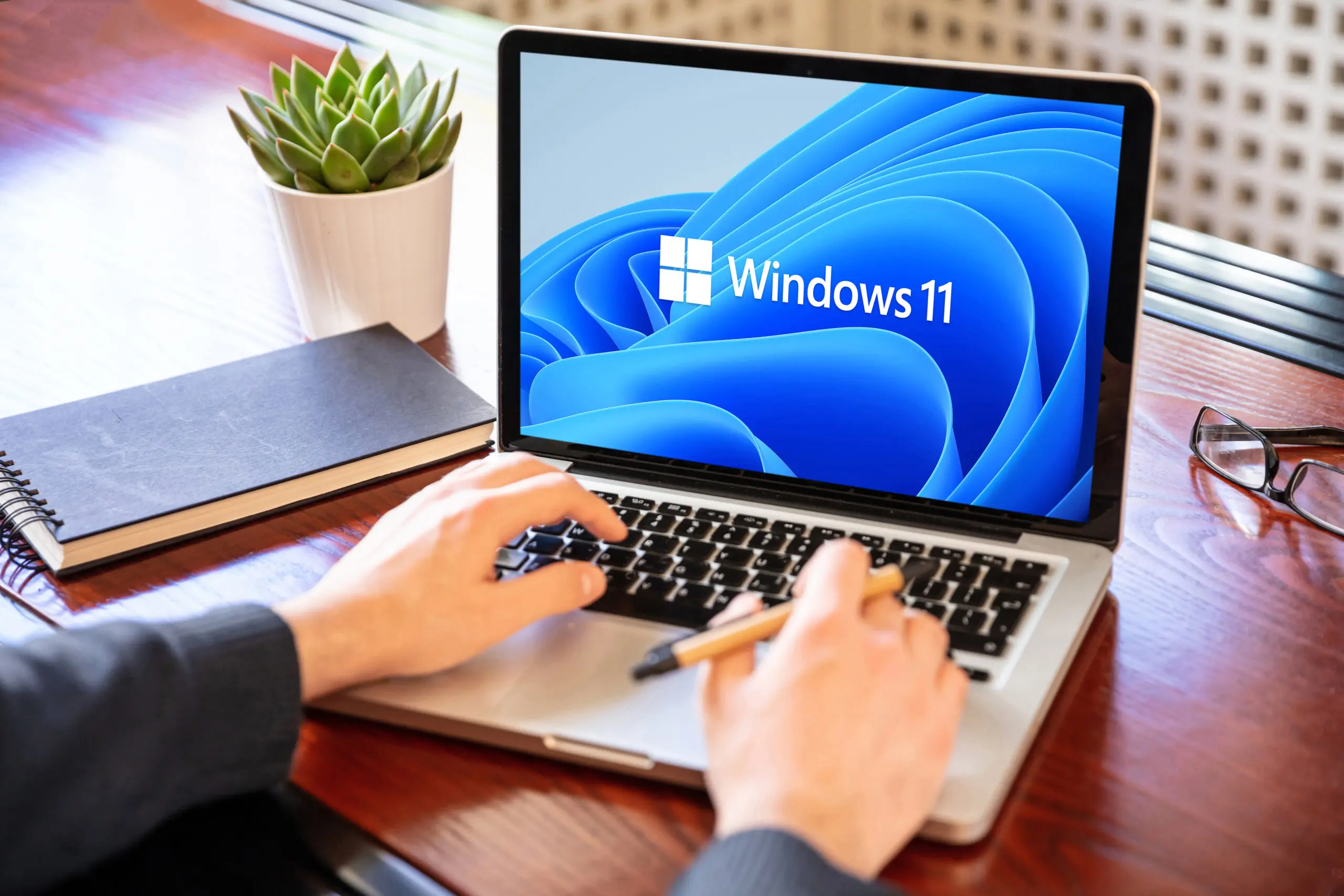
Windows 11 Cloud rebuild is a recovery option that reinstalls Windows and the PC’s drivers from Windows Update, with no USB drive and no installation media. Microsoft’s support page for Cloud rebuild says it can fix a PC when other recovery options fail, and it can also wipe a PC before recycling or returning it. The feature needs the October 2026 non-security update, KB5127936, which BleepingComputer reports was released on Oct. 29. This guide covers the requirements, the exact steps, what the process erases, and the errors Microsoft documents.
What Windows 11 Cloud rebuild does
Cloud rebuild reformats the system drive and installs a fresh copy of Windows 11 that it downloads from Windows Update. Microsoft’s Learn documentation says the process does not depend on the Windows files already on the PC, so it can work when the installed copy is damaged. When the install finishes, the PC starts the out-of-box setup, the same screens a new PC shows.
Windows Central, in its explainer published July 11, 2026, gives an early explainer on how the feature works. The Microsoft Learn page says the feature is still in preview, was last updated Sept. 18, 2026, and carries no general availability date. Microsoft recommends it for evaluation on non-production devices, so work PCs should follow company policy first.
Requirements for Windows 11 Cloud rebuild
The two Microsoft pages list slightly different requirements, and the table below combines them.
| Requirement | What Microsoft says |
|---|---|
| Operating system | Windows 11, with the October 2026 non-security update (KB5127936) or later |
| Recovery environment | A working Windows Recovery Environment, which can be checked with reagentc /info in an elevated command prompt |
| Hardware | Windows 11 minimum requirements, including TPM turned on |
| Network | Ethernet connects automatically; Wi-Fi must be a WPA-Personal (WPA2-Personal) network |
| Drivers | A networking driver in the recovery environment, and the PC’s drivers available on Windows Update |
| Power | Plugged in for the whole process |
Microsoft’s support page does not list supported editions or builds beyond the update. The Learn page says its local-start steps are described for the Windows Insider preview release, which is one reason the two pages should be read together.
How to start Cloud rebuild from Settings
When Windows still starts, Microsoft’s support page gives this route:
- Open Settings, then System, then Recovery.
- Next to Rebuild this PC, select Rebuild PC.
- Connect to Ethernet, or pick a Wi-Fi network and enter its password.
- Choose Remove files or Remove & sanitize, described below.
- Confirm the warning and let the process run. The PC may restart more than once.
The page warns not to power off or restart during these phases, because interrupting the install can leave Windows unable to start.
How to start Cloud rebuild when Windows will not boot
Windows opens its recovery environment on its own after several failed startups. It can also be opened from Settings by choosing System, then Recovery, then Restart now next to Advanced startup. On the Choose an option screen, Microsoft says to select Troubleshoot, then Cloud rebuild. The tool then connects to the network, shows Getting things ready while it contacts Windows Update for the target build and drivers, and offers the same two removal choices. If the rebuild is interrupted and Windows still will not start, Microsoft says to use a recovery drive, installation media, or the manufacturer’s recovery media.
Remove files or Remove and sanitize
The two removal options differ in speed and in how recoverable the old data is.
| Option | Best for | Trade-off |
|---|---|---|
| Remove files | A PC that will be kept | Faster, but specialized tools might recover some data |
| Remove & sanitize | A PC being recycled, returned or reassigned | Takes longer and makes recovery much harder |
On a PC with more than one disk, the sanitize path asks for Windows disk only or All disks, then ends with Sanitize and install. Microsoft says Windows asks the storage hardware to erase the disks using the strongest method it supports, but Windows cannot verify the result. For legal or company disposal rules, the support page advises checking with the PC maker, and it warns against skipping sanitization when a PC is being recycled or given away.
What Cloud rebuild erases and keeps
Cloud rebuild always removes everything on the PC, including personal files, accounts, apps and settings. Files stored in OneDrive or other cloud services are not affected. That is a key difference from Reset this PC, which Microsoft’s support page says can keep personal files. Microsoft’s comparison adds two more differences: a rebuild downloads Windows and drivers fresh, and it can sanitize the disks.

Because of that, a short checklist before starting is the Jolt Journal’s own suggestion and not Microsoft’s:
- Copy any files that exist only on the PC to an external drive or cloud storage.
- Confirm that OneDrive shows a finished sync before starting.
- Write down the Wi-Fi password, and confirm the network uses WPA2-Personal.
- Plan to sign back in to apps and accounts afterward. The Jolt Journal’s guide to setting up passkeys covers one way to make that easier.
The Jolt Journal’s guide to backing up a phone explains the 3-2-1 backup rule, which applies to PC files in the same way.
Errors Microsoft documents for Cloud rebuild
Microsoft lists three error codes and one sanitization failure.
| Error | Meaning | Microsoft’s fix |
|---|---|---|
| 0x800704C6 | No network connection | Connect Ethernet or a WPA2-Personal Wi-Fi network, then restart Cloud rebuild |
| 0xc1900200 | The PC does not meet Windows 11 requirements, often because TPM is off | Turn on TPM in firmware, where it may be labeled PTT, fTPM or Security Device |
| 0xc1900224 | A required driver is not on Windows Update | Ask the manufacturer, retry, or use manufacturer recovery media |
| Sanitization could not be completed | The erase step failed | Try again, skip sanitizing, or copy the log to a removable drive |
The Learn page also tells testers to copy several log folders from the recovery command prompt and send feedback through Feedback Hub under the Cloud rebuild category.
What the Cloud rebuild documentation leaves open
Neither Microsoft page gives a download size or a time estimate, saying only that duration depends on internet speed and the PC. Neither gives a general availability date. The Learn page describes management settings for IT teams, but says those settings are available only in Windows Insider preview builds and may change. Whether the feature will reach every Windows 11 edition in its current form is therefore not settled.
Editor’s take
Cloud rebuild is a useful addition for anyone who has needed a USB stick and a second PC to repair a broken one. Its main risk is how complete the wipe is: nothing local survives, and the feature is still labeled preview. A sensible approach is to treat it as a last resort after backups are verified, and to use the sanitize option only when a PC is leaving the owner’s hands. People who manage work devices should wait for Microsoft’s general availability notice.
This is general information. Microsoft’s support and documentation pages have the final word on requirements and steps.